 RowSweep
Guide
Everything RowSweep can do, and what happens at each step.
How every job works
- Choose a job type and a database. RowSweep only sees the databases you shared with it when you connected Notion.
- Give the input: a spreadsheet, a filter and actions, or a sentence.
- RowSweep builds a preview. It reads the database and lists every row it would change, with the current and new values. Nothing has been written yet.
- You approve. Untick rows you want to leave alone, read the warnings, then click Run.
- The job runs in the background at the pace Notion allows. You can close the page; you get an email when it finishes or pauses.
- You can undo it. RowSweep keeps the previous values, so the whole job can be reversed from History.
Spreadsheet sync
Updates rows from a CSV file and, if you want, adds the rows that are missing.
- The file: CSV in UTF-8, separated by commas, semicolons or tabs, with a header row. Up to 20 MB. Export from Excel with “CSV UTF-8”.
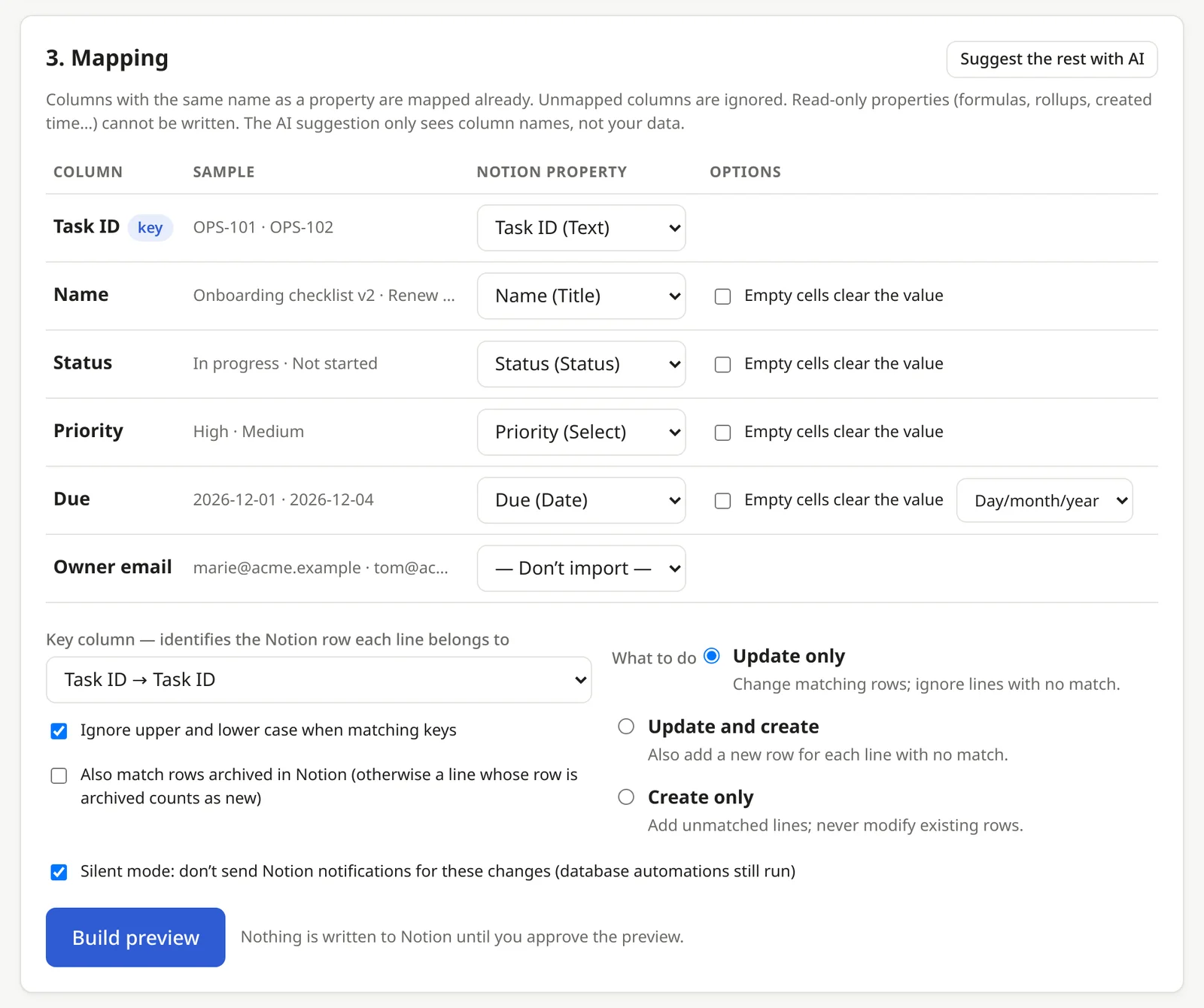
- Mapping: columns with the same name as a property are matched automatically. Map the others yourself, or click Suggest the rest with AI, which only sees the column names. Unmapped columns are ignored.
- Key column: identifies which Notion row each line belongs to, usually an ID, a name or an email. It can be a title, text, number, select, URL, email, phone or ID property. Matching ignores upper and lower case unless you untick that option.
- What to do: Update only changes matching rows; Update and create also adds a row for each unmatched line; Create only adds unmatched lines and never touches existing rows.
- Cell options: empty cells are ignored unless you choose “Empty cells clear the value”. Dates can be day/month/year or month/day/year, or ISO (2026-03-31); “2026-03-01 → 2026-03-05” is a range. Multi-select values are separated by commas (or another separator you choose). People columns take email addresses of workspace members. Checkboxes accept yes/no, true/false, 1/0, x.
- Skipped lines are listed with a reason: empty key, key repeated in the file, several Notion rows with the same key, no matching row, row already exists, or a value that cannot be written (for example a status option that does not exist).
- Running the same file twice changes nothing the second time: rows that already have the right values are marked “unchanged”.
- Archived rows are not matched unless you tick “Also match rows archived in Notion”; otherwise a line whose row is archived counts as new. Matched archived rows are updated and stay archived.
Bulk edit
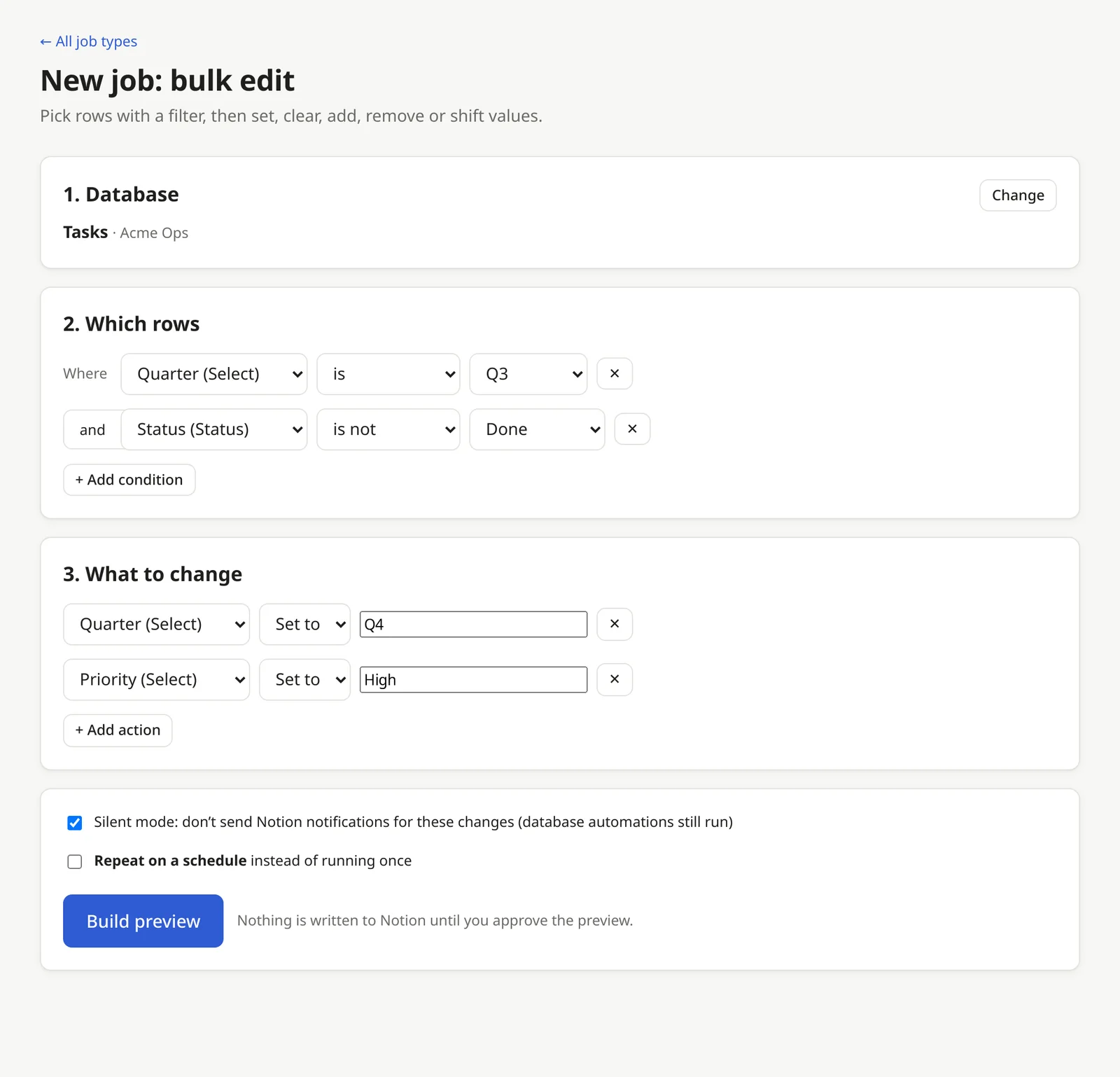
Pick rows with a filter, then change them with one or more actions. No spreadsheet needed.
Filter
- Add conditions on any property and combine them with and (all must match) or or (any can match). No condition means every row.
- Text: is, is not, contains, does not contain, starts with, ends with, is empty. Numbers: =, ≠, >, ≥, <, ≤. Select and status: is, is not. Multi-select and people: contains, does not contain. Checkbox: checked or not.
- Dates: is on, before, after, on or before, on or after. Use a date (2026-03-31) or a relative one:
today,today+7,today-30. Created time and last edited time work the same way. - Text comparisons ignore upper and lower case, as in Notion.
Actions
- Set to a value (any writable property), Clear it, Add or Remove options in a multi-select or people in a people property, Shift date by a number of days (negative moves back; ranges move together), Find and replace text.
- Actions apply in order, so “add Urgent, then remove Backlog” works on the same property.
- Setting a select or multi-select to a new name creates that option in the database. The preview warns you, and those rows are skipped unless you allow new options. Status options are never created.
Example: Status is Done and Due date is before today-30 → Add “Archive” to Tags.
Describe it in words
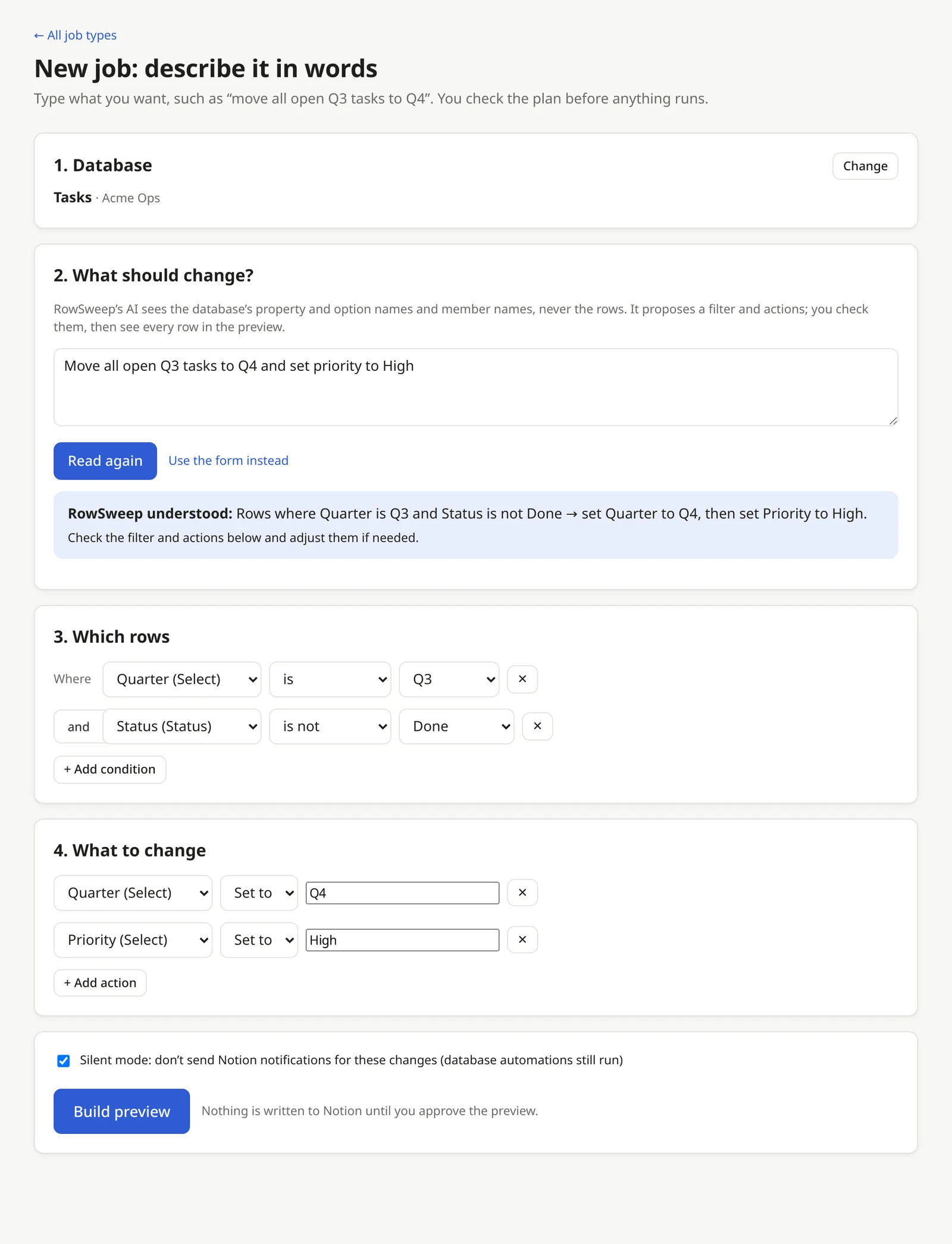
Type the change you want; RowSweep’s AI turns it into the same filter and actions as a bulk edit. Pro and Team plans.
“Move all open Q3 tasks to Q4 and set priority to High” · “Clear the due date on everything tagged Backlog” · “Archive every task in Q3 owned by Marie that is Done”
- RowSweep shows what it understood in plain words, and the filter and actions below it. Check them and adjust them before building the preview.
- If the request is ambiguous, for example two members named Marie, or a misspelled option, RowSweep asks a question instead of guessing.
- Requests that go beyond row values and replacing text in page content, such as renaming a property or rewriting a page, are refused with an explanation.
- It can also replace text in page content, or use a pattern, when you ask for it (“replace Q followed by any number with Quarter and the number in the notes of every page”).
- The AI sees the database’s property names, types and option names and, when the database has people properties, member names. It never sees your rows. It cannot run anything: you still see every row in the preview and approve it.
Find and replace
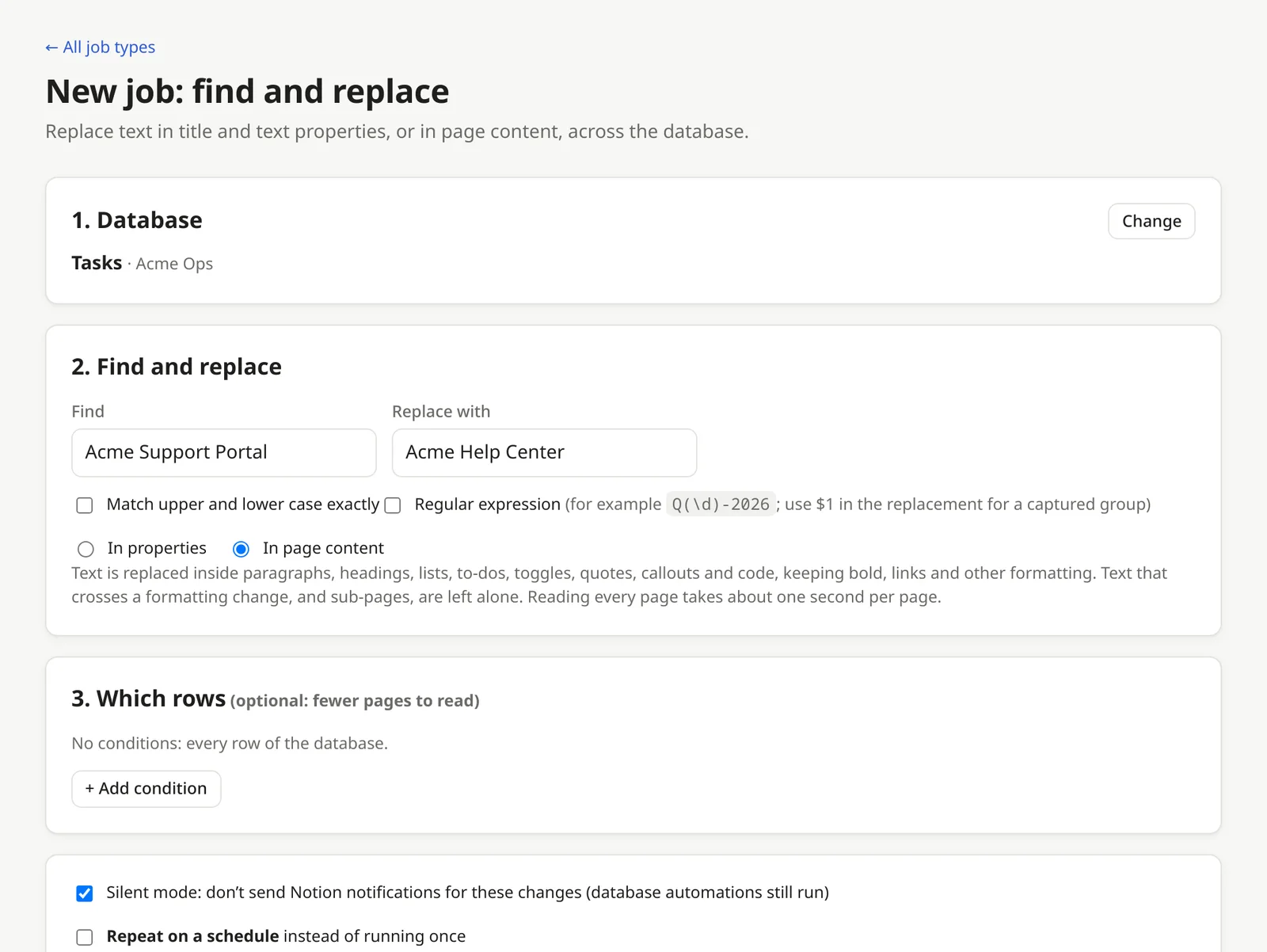
Replaces text across the database, either in properties or in the pages themselves.
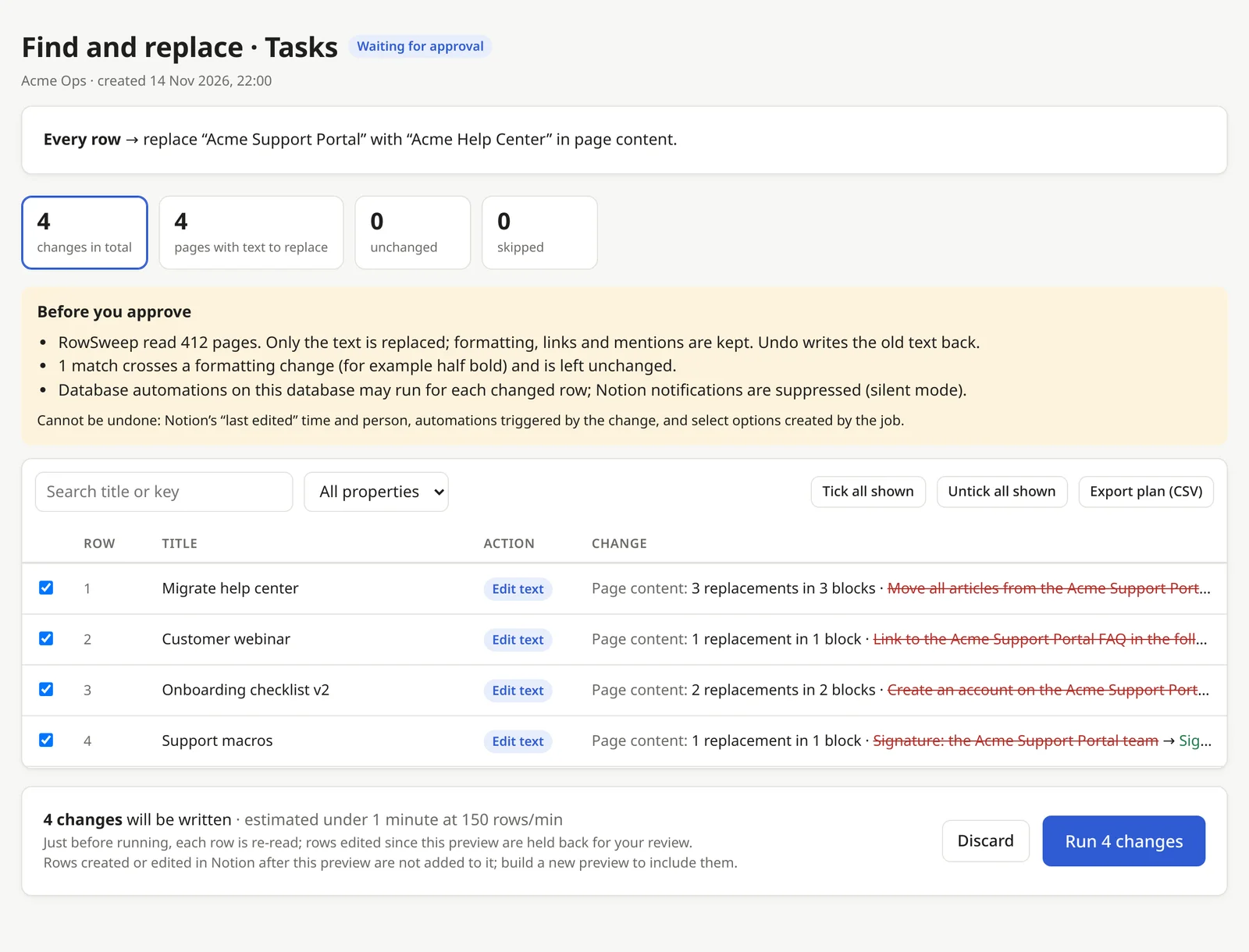
- In properties: the title and text properties you tick. Replaced cells lose their formatting, links and mentions; undo restores them.
- In page content: paragraphs, headings, lists, to-dos, toggles, quotes, callouts and code, including nested blocks. Bold, links, mentions and other formatting are kept. Add conditions under “Which rows” to read fewer pages: RowSweep reads about one page per second.
- Rows and pages without the text are not touched. Tick “Match upper and lower case exactly” to make the search case-sensitive. Leave “Replace with” empty to remove the text.
- Regular expressions: tick “Regular expression” to search with a pattern, such as
Q(\d)-2026, and use$1,$2in the replacement for the parts in brackets. Patterns that take too long to run are stopped with a message. - In page content, text that is half in one format and half in another (for example half bold) is not replaced; the preview counts these. Sub-pages, synced blocks and very long pages (over 1,000 blocks) are not fully read.
- Just before writing, RowSweep checks that each paragraph still holds the text from the preview; a page edited since is held back. Undo writes the previous text back, except in paragraphs edited after the job.
Move rows to trash
- Moves every row matching the filter to Notion’s trash. RowSweep never deletes anything permanently.
- You confirm by typing the number of rows. Without any condition, you also confirm that every row is meant.
- Rows can be restored from Notion’s trash, or all at once by undoing the job.
Apply a template
- Adds the content of one of the database’s templates to every page matching the filter. The content is added below what is already on the page; nothing is erased.
- Notion fills templates in the background. After the job, RowSweep checks each page and marks pages where no content arrived as unverified. It never applies a template twice automatically, to avoid duplicates.
- Undo is partial: it removes the top-level blocks that appeared on each page after the template was applied (including any added by people since). Property values set by the template are not reverted.
The preview
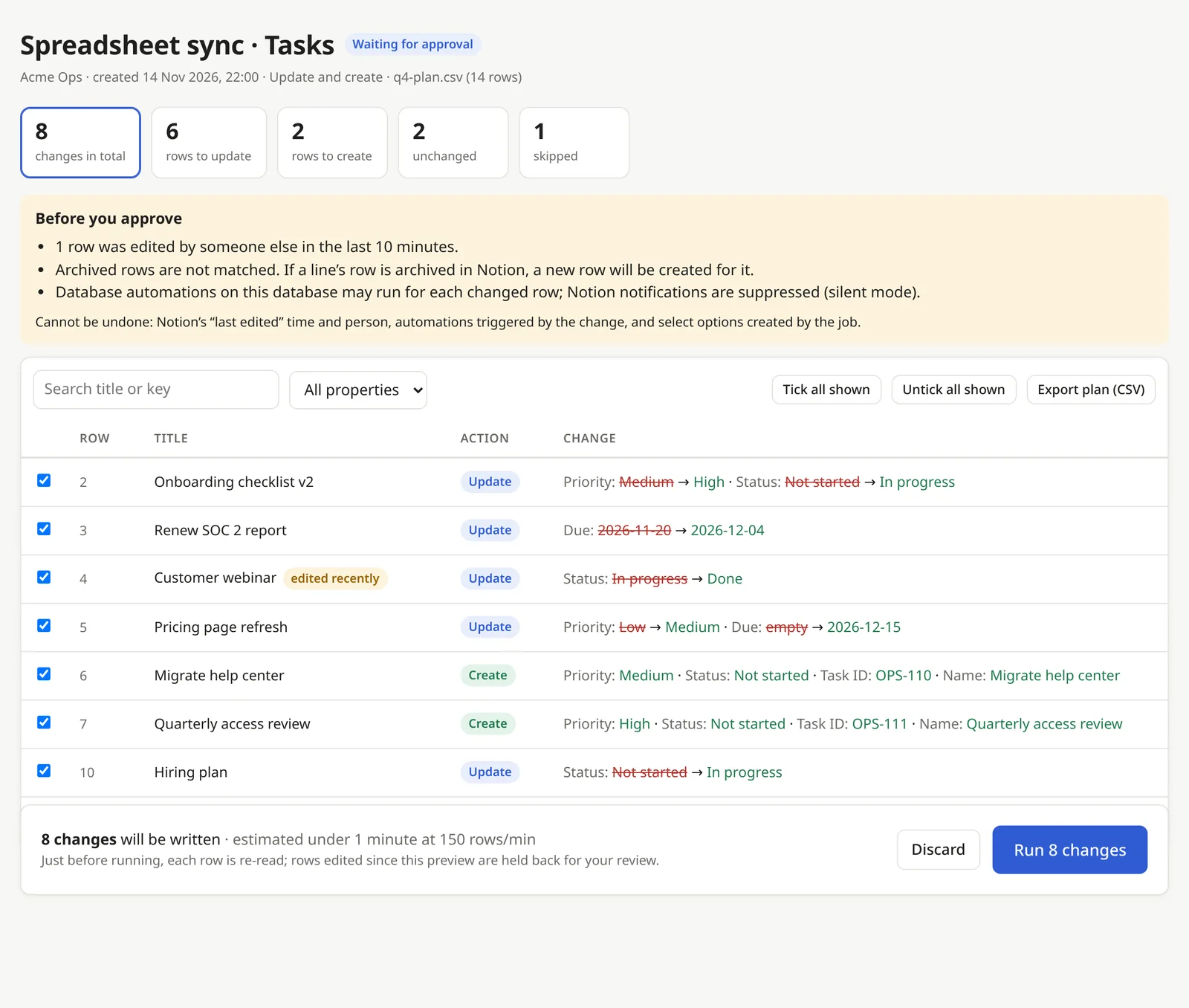
- The summary counts rows to update, create, trash or restore, unchanged rows and skipped rows. Click a count to show those rows; search by title or key, or filter by property.
- Each row shows the old value crossed out and the new value. Click a row for the full detail and a link to the page in Notion.
- Untick rows to leave them out, one by one or with “Untick all shown”.
- Warnings appear above the table: new select options, rows edited by someone in the last 10 minutes, text that loses its formatting, database automations that may run, and a run with no filter.
- Jobs that trash rows or change more than 1,000 rows ask you to type the number of changes before running.
- Export plan (CSV) downloads the whole preview.
Running a job
- Just before writing, RowSweep re-reads each row. Rows that someone changed since the preview are held back, never overwritten. When Notion notifies RowSweep of changes, rows someone edits while the job is running are held back too. Build a new preview to apply them.
- RowSweep writes about 150 rows a minute, under Notion’s limit, so your workspace keeps working. On Notion Business or Enterprise, tick the option in Settings to go up to 500 a minute.
- Pause, resume or cancel at any time. Cancelling stops further writes; what was already written can be undone.
- If more than 5 of the last 100 rows fail, the job pauses itself so you can check the errors.
- Silent mode (on by default) asks Notion not to send notifications for the changes. Database automations still run.
- You get an email when the job finishes or pauses. The finished job has a downloadable report of every row.
Undo
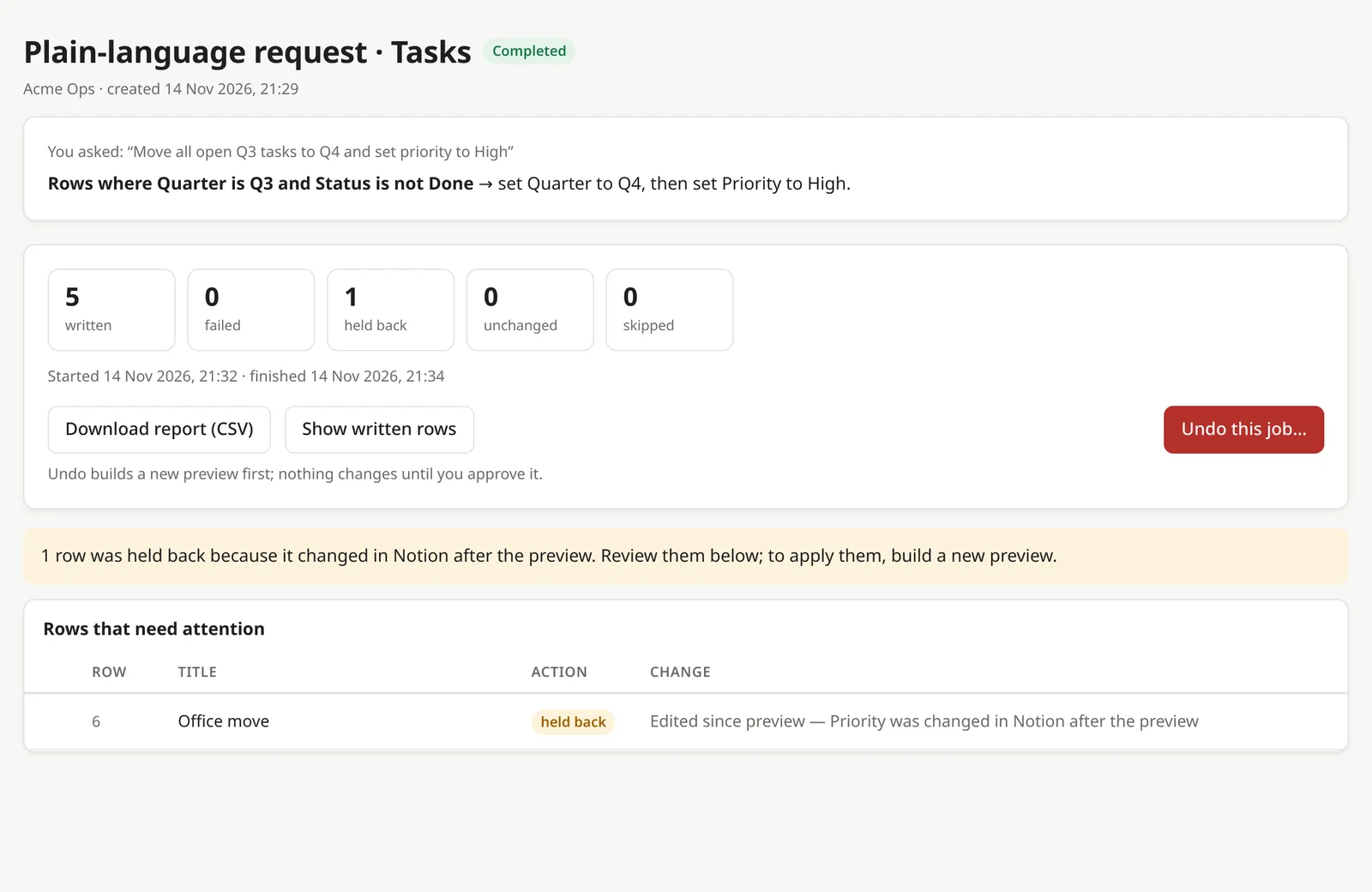
- Open a finished job from History and click Undo this job. RowSweep builds an undo preview; nothing changes until you approve it.
- Updated values go back to what they were, including formatting and mentions. Created rows go to the trash. Trashed rows are restored. Template content is removed as described above.
- Rows that someone changed after the job are unticked by default, so their later edits are kept. Tick them to overwrite.
- Undo is available for 24 hours on Free, 30 days on Pro and 90 days on Team.
- Cannot be undone: Notion’s “last edited” time and person, notifications already sent, automations already triggered, and select options created by the job (undo clears the values but leaves the options in the database).
Scheduled rules
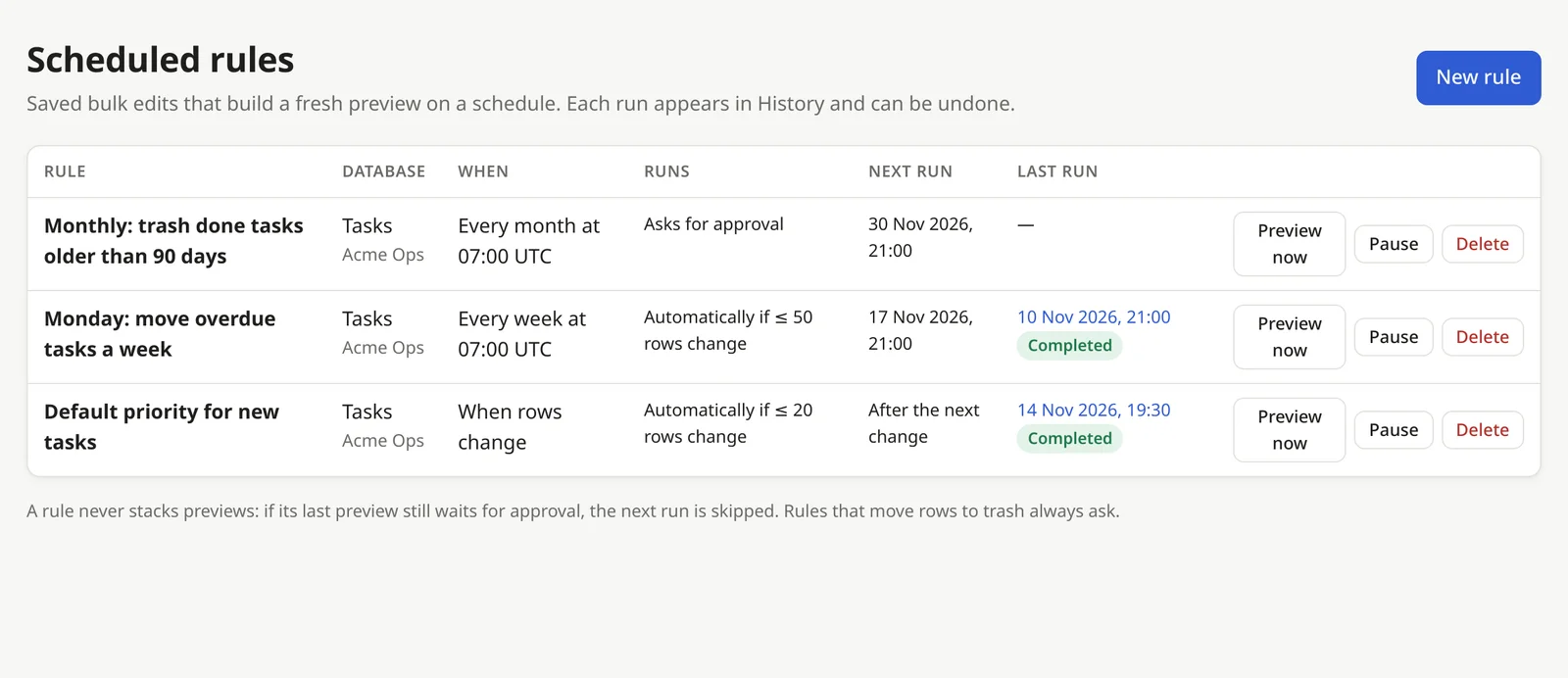
Repeat a bulk edit, find and replace or trash job every day, week or month, or whenever rows change. Pro and Team plans.
- Set it up like a normal job, then tick Repeat on a schedule and choose how often and at what time.
- Every time rows change in Notion: the rule runs a few minutes after someone adds or edits rows in the database, at most every 10 minutes. Changes made by RowSweep itself never start it. Good for keeping defaults filled in, such as “new tasks without a priority get Medium”.
- Each run builds a fresh preview from the database as it is at that moment. Choose Always ask me (you get an email to approve) or Run automatically if at most N rows change, otherwise ask.
- Rules that move rows to trash always ask. Runs that would create new select options always ask too.
- If the previous preview is still waiting for your approval, the next run is skipped, so previews never pile up.
- Manage rules on the Rules page: preview now, pause, resume or delete. Every run appears in History and can be undone.
Teams and the team log
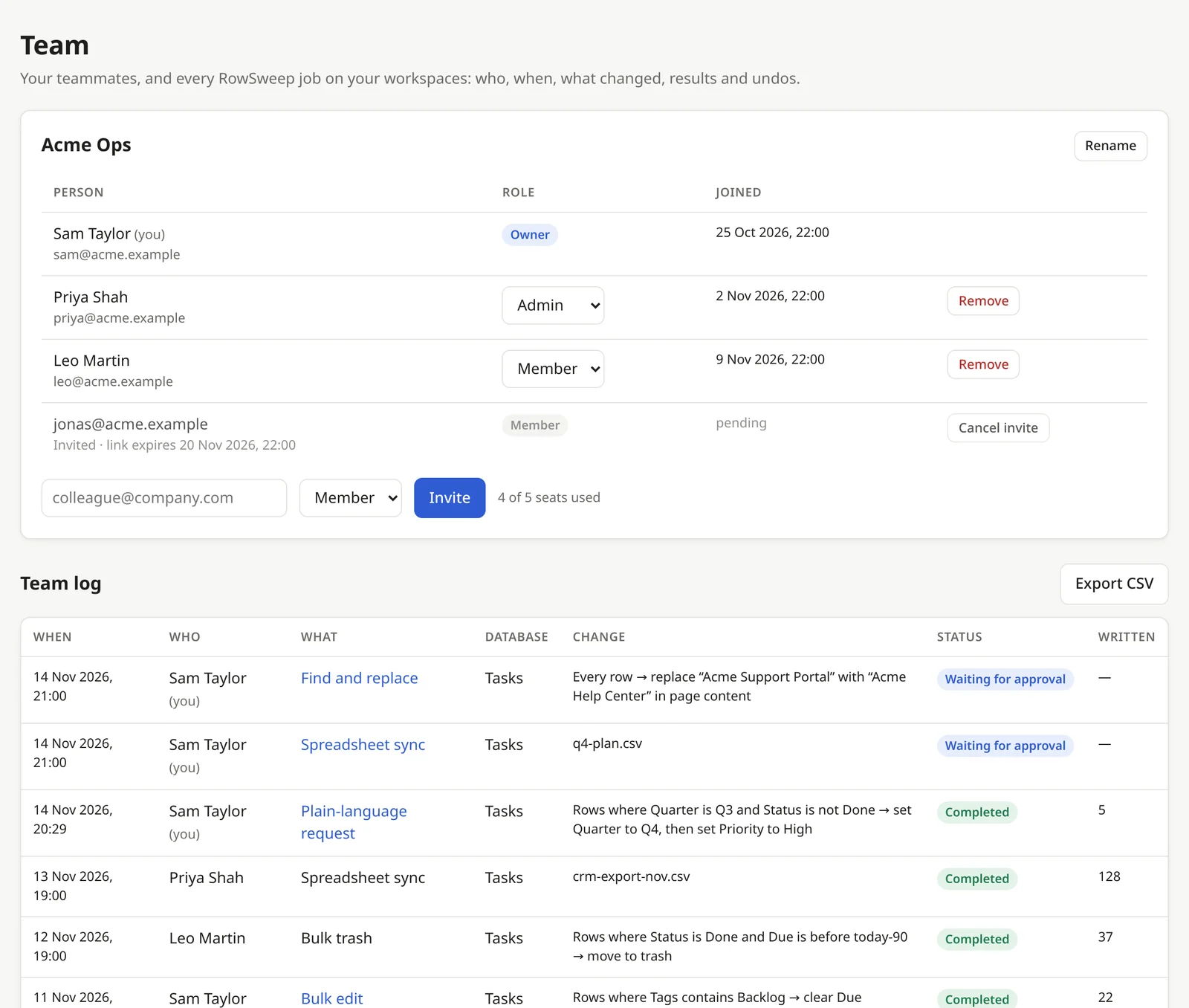
- Your team: on the Team plan, invite up to 4 colleagues from the Team page (5 people with you; pending invites count). They get the Team plan’s features while they are in your team, without paying.
- Invites are emailed, and the link is also shown so you can share it yourself. It works once and expires after 7 days. The person signs in with Notion and joins.
- Roles: admins invite and remove people and change roles; members can leave. The owner, who holds the subscription, is always an admin. Someone can be in one team at a time.
- The team log lists every RowSweep job on the workspaces you connected, by everyone who connected them: who, when, what, which database, results and undos. Admins also see the workspaces their teammates connected, with the teammates’ jobs.
- Export the log as CSV for your records. Only your own jobs open in detail.
Access, privacy and plans
- Sharing a database: RowSweep only sees what you share. In Notion, open the database, click ··· → Connections and add RowSweep, or connect again from Settings and tick more pages.
- What is stored: change plans, the previous values of what a job changed (for undo, including the changed text for find and replace in page content), uploaded files (deleted 7 days after a job) and a job log. Details are in the privacy policy.
- Removing access: Disconnect a workspace in Settings, delete your stored data, or delete your account.
- Plans: Free includes 3 jobs a month and 200 rows per job; Pro and Team add unlimited jobs, up to 10,000 rows per job, longer undo, plain-language requests and scheduled rules; Team adds members, roles and the shared log. See pricing.
Still stuck? See Support.